
The short answer
A mini PC fan that runs loud with nothing running is almost never a broken fan. It is a fan curve whose start temperature sits below the machine’s actual idle temperature, sometimes combined with a High Performance power plan. Fix the curve in BIOS, and check for a blocked intake before you change anything.
What we measured on our unit
We only publish first-hand noise figures for the machine on our bench: a Beelink EQi12 with an Intel Core i3-1215U.
| Item | Observation | Context |
|---|---|---|
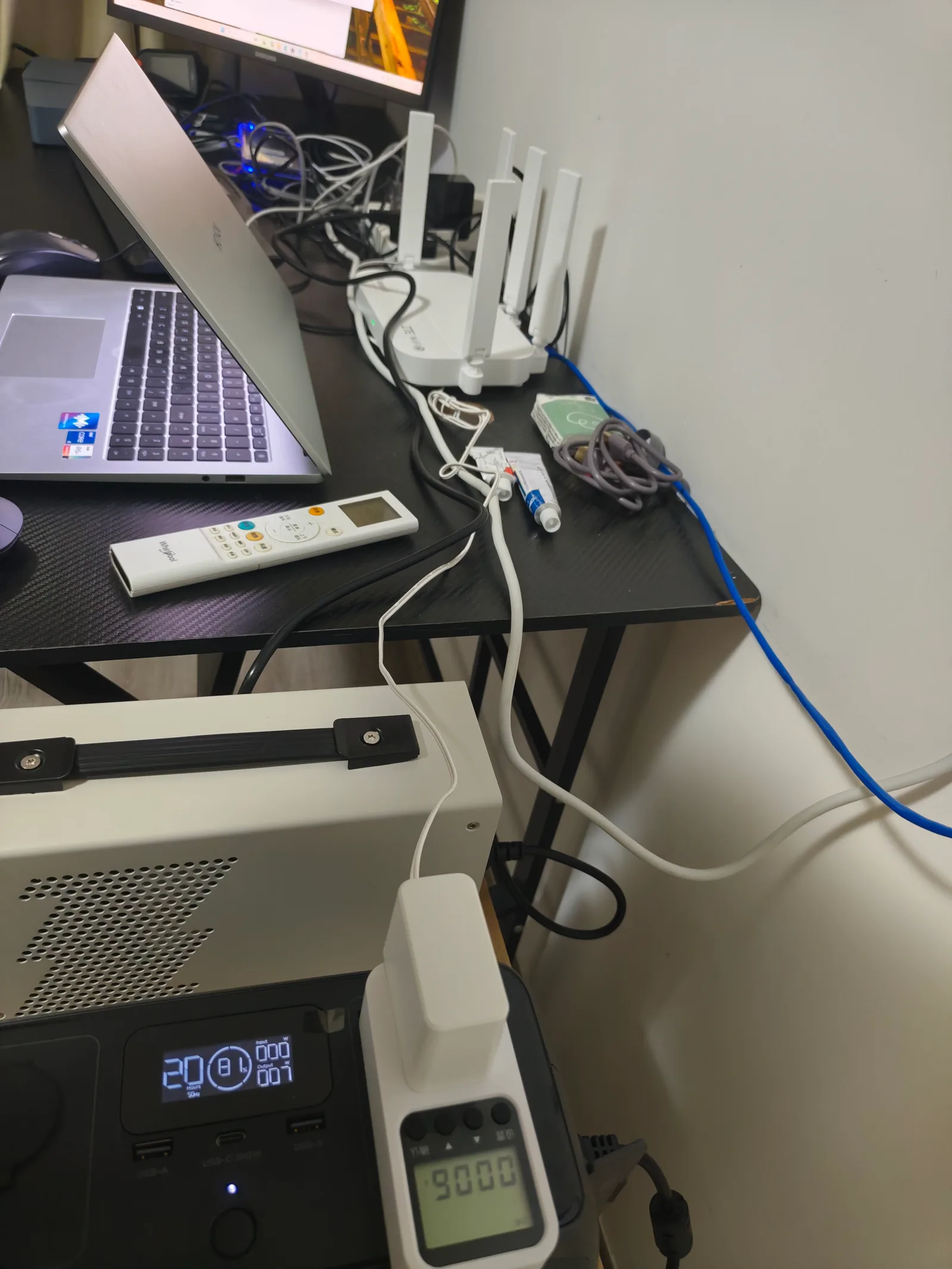
| Sound reading | 40.4 dBA | Sound meter positioned near the unit in the photographed test setup |
| Wall power, Windows idle | 14 W | Docker stopped |
| Wall power, Docker stack idle | 12 W | Jellyfin, PostgreSQL, nginx and Redis healthy |
| Wall power, sustained CPU load | 37 W | All logical processors at 100% |
The 40.4 dBA figure is a setup-specific observation, not a standardized product-noise rating. Room background noise, microphone distance, workload and where the meter sat all move that number, and a single reading at one distance cannot be compared with a manufacturer’s anechoic chamber figure. What it does establish is the scale: this is quiet-room quiet, not silent, and the reading was taken with the machine running its normal workload rather than pinned at full load.
What the firmware actually exposes
This is the part the model manual does not cover, and the reason fan questions stay unanswered: the manual documents connectors and specifications, not the thermal policy.
The EQi12 runs AMI Aptio firmware. Beelink’s own published fan documentation for this generation of mini PCs describes a Smart Fan Function under Advanced → Hardware Monitor, split into a CPU Smart Fan Mode and a System Smart Fan Mode. Three modes exist:
| Mode | Behaviour | When to use it |
|---|---|---|
| Manual Mode | You set a fixed PWM value from 0 to 255. Higher is faster | Rarely. Beelink’s documentation warns against values below about 65 to avoid CPU overheating |
| Full on Mode | Fan runs at maximum speed continuously | Diagnostic only — use it to prove the fan can reach full speed |
| Automatic Mode | A temperature-to-speed curve with editable thresholds | The normal choice, and the one worth tuning |
Automatic Mode is where the useful parameters live. Beelink documents these defaults for this generation:
| Parameter | Default | What it means |
|---|---|---|
| Fan stop temperature | 35 °C | Below this, the fan does not spin |
| Fan start temperature | 40 °C | Above this, the fan begins spinning |
| Fan full-speed temperature | 90 °C | Above this, the fan runs at 100 % regardless of the curve |
| Fan Start PWM | 65 (some models 70) | The duty cycle the fan jumps to when it starts |
| PWM Slope Setting | 2 PWM | Fan speed added per 1 °C rise, settable between 2 and 4 |
Read those defaults as a specification, because that is what they are. A 40 °C fan start threshold is the single most common explanation for a fan that will not sit still: many mini PCs idle with a package temperature around or above 40 °C in a warm room, so the fan starts, cools the chip below the stop threshold, stops, and repeats. In a quiet room that cycling is far more noticeable than a steady low-speed fan would be.
The causes, in the order worth checking
| # | Reported cause | Why it produces the symptom | First check |
|---|---|---|---|
| 1 | Blocked or dusty bottom intake | The EQi12 pulls air from the bottom of the case. Sitting on carpet, cloth or a full shelf starves it, so temperatures rise and the fan reacts correctly | Lift the unit, look at the intake, feel for airflow |
| 2 | Fan start threshold below idle temperature | The 40 °C start default against a 40 °C-plus idle produces on-off-on cycling | Watch the temperature and the fan together for two minutes |
| 3 | Windows power plan set to High Performance | Keeps clocks and voltage high at idle, which raises idle temperature, which raises fan activity | powercfg /getactivescheme, then set Balanced |
| 4 | Sustained background workload | A backup, media scan or indexing job is genuinely heating the CPU. The fan is reporting a real load | Task Manager sorted by CPU, over time rather than one glance |
| 5 | Thermal paste degraded | On units two or more years old, dried paste raises die-to-heatsink resistance, so the fan spins faster at the same load | Compare today’s idle temperature with what the unit did when new |
| 6 | Fan bearings worn | Produces a grinding, rattling or ticking character rather than a smooth rush of air | Listen: if it is mechanical, no curve will fix it |
| 7 | Coil whine from the power supply | A high-pitched tone with the machine off or idle is not the fan at all. The EQi12 has a built-in 85 W supply | Identify the source before ordering a replacement fan |
Ranks 5 and 6 are the two that genuine hardware replacement addresses; the rest are configuration, placement, or simply the machine doing its job. A third-party teardown of the EQi12 series (the i3-1220P variant) reported the fan sitting around 2000 rpm in normal use and spiking toward 3700 rpm only during sustained FPU stress, with the default ramp threshold near 85 °C — a useful reminder that a correctly configured unit of this family is not meant to be loud at idle.
The fan curve, drawn
The diagram shows the documented default curve against a quieter curve, on the same axes, so the trade-off is visible rather than described.
The principle behind the shape is simple: widen the quiet zone and protect the top end. Raising the start threshold removes the idle cycling; pushing the full-speed threshold down slightly makes sure the machine still commits to maximum cooling before the processor’s own limit, which Intel documents as a 100 °C junction maximum for the Core i3-1215U.
Tuning procedure
Work in this order, and change one thing at a time.
- Photograph the current settings. Enter BIOS with
Delduring boot on the EQi12. Navigate toAdvanced → Hardware Monitor → Smart Fan Functionand photograph the screen before changing anything. This is your restore point. - Establish the actual idle temperature first. Without a reading, you are guessing. On Windows use HWiNFO64 or HWMonitor; on Linux use
lm-sensorsorsensors. Note the package temperature after five minutes of true idle. - Raise the fan start threshold to sit above that idle temperature, for example from 40 °C to 50 °C. This alone removes the cycling pattern.
- Keep the full-speed threshold honest. Leave it at 90 °C or lower it a little. Never raise it above the processor’s documented limit.
- Do not drop the fixed PWM floor below Beelink’s recommended minimum if you use Manual Mode. Values above roughly 65 of 255 are the documented safe zone.
- Save, reboot, then measure the same workload again, and record the temperature alongside the noise. If temperature rose and the fan is quiet, that is the trade you chose; verify it did not cross the throttle threshold.
If the BIOS has no fan section on your model, the remaining levers are placement, the Windows power plan, and workload. That is a real limit, not a workaround.
What not to do
- Do not set a fixed low PWM and walk away. A constant low duty cycle with no temperature response removes the one behaviour that protects the silicon.
- Do not tune the curve before checking for dust. A dusty intake with a quiet fan curve produces a hot, quiet machine instead of a cool, quiet one.
- Do not compare your dBA number with a manufacturer’s. Anechoic ratings and a phone sound app in a living room are not the same measurement, and this page’s 40.4 dBA figure is deliberately labelled as setup-specific for that reason.
Where to go next
- Beelink EQi12 review — the full measured record this page draws its noise and power figures from.
- EQi12 seven measured power states — idle, load, transcode, sleep and shutdown readings at the wall.
- Mini PC PL1 and PL2 power limits — the other half of the heat equation: what caps the processor before the fan is asked to do anything.
- BIOS settings for a home server on the EQi12 — the full firmware walkthrough, including the options referenced here.
- Docker home server stability check — how to tell a real stability problem apart from benign processor power-state noise in the event log.
Sources
Measured on our unit
- Beelink EQi12 (i3-1215U) — 40.4 dBA setup-specific sound reading, wall power at idle and load, recorded alongside the sound-meter scene. Full record:
/hardware/beelink-eqi12-review/and/lab/beelink-eqi12-power-consumption/. - Firmware identification: AMI Aptio, exposing Intel virtualization, VT-d, S3 sleep and State After G3 — same unit.
Manufacturer documentation
- Beelink Smart Fan Function documentation for the S13/S12/EQ12/EQ12 Pro/EQ14 generation (mode descriptions, and the defaults used in the table above: stop 35 °C, start 40 °C, full speed 90 °C, Fan Start PWM 65, PWM slope 2, settable 2–4; warning against manual PWM values below about 65).
- Beelink EQi12 series documentation — bottom-intake MSC2.0 cooling design, built-in 85 W supply, 126 × 126 × 44.2 mm chassis, and a noise claim for a different processor variant. Variant noise claims are not applied to our unit.
- Intel Core i3-1215U product specification — 100 °C junction maximum, used as the ceiling the fan curve must respect.
Third-party teardowns and guides (reported, not measured here)
- Detailed teardown of the EQi12 series, i3-1220P variant — reported fan behaviour around 2000 rpm in normal use rising toward 3700 rpm under sustained FPU stress, and a default throttle threshold near 85 °C. That is a different processor variant from our unit and is cited as a variant-specific report.
- Nerd Techy — “Why Is My Mini PC Fan So Loud?” (dust, degraded thermal paste, power plan and bearing failure as distinct causes).
- On2Tech — compact mini PC fan-noise fixes (vibration isolation, placement, bearing types).
- Quick Hard Drive — BIOS fan curve tuning for budget mini PCs (fan cycling pattern, temperature-to-speed mapping table).
- How-To Geek — mini PC BIOS settings that matter (fan curve and power limits framed as the two settings worth reviewing).
- Atem Cooler — mini PC thermal management notes (fan profile location in Beelink and Minisforum firmware).
All temperature thresholds quoted as documentation come from Beelink’s published fan documentation. Our unit’s own noise and power figures come from the bench record. No temperature value is claimed for our hardware because we did not retain a calibrated temperature measurement for it.